Help when you need it
Get support directly from your dashboard, or browse our guides to get started faster.
Built-in support tickets
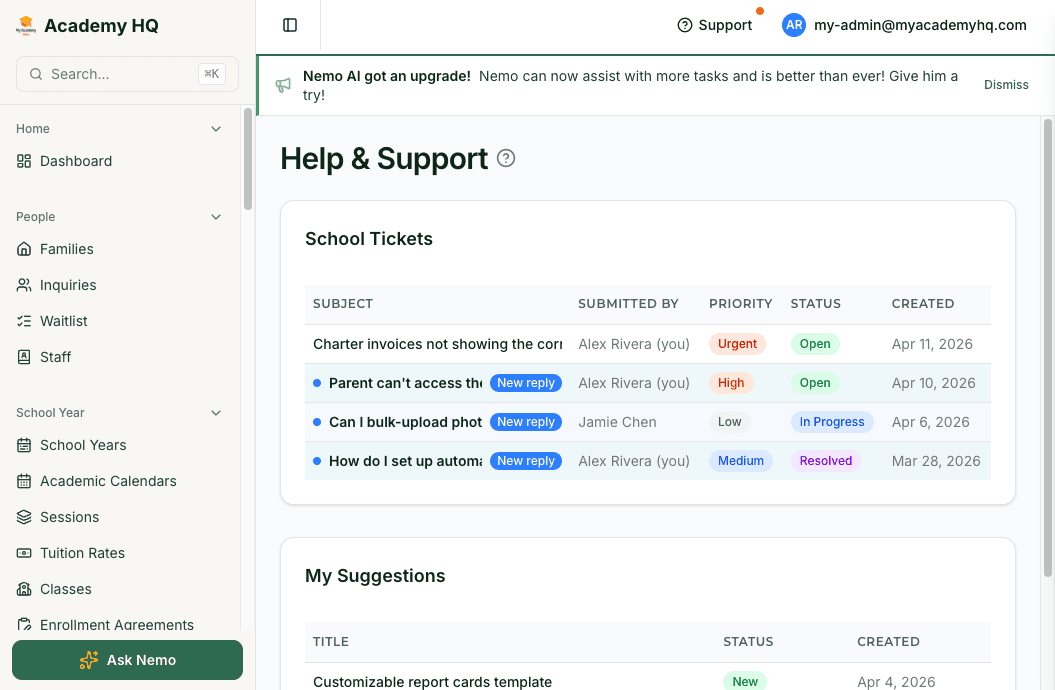
Support is built right into the platform. Submit a ticket from your dashboard and our team responds directly inside the same thread.
- Submit a ticket directly from the Help area in your dashboard.
- Set the priority level based on how urgent the issue is.
- Track status updates and responses in one threaded conversation.
- Keep support history connected to your school account.
Your ideas shape what we build next
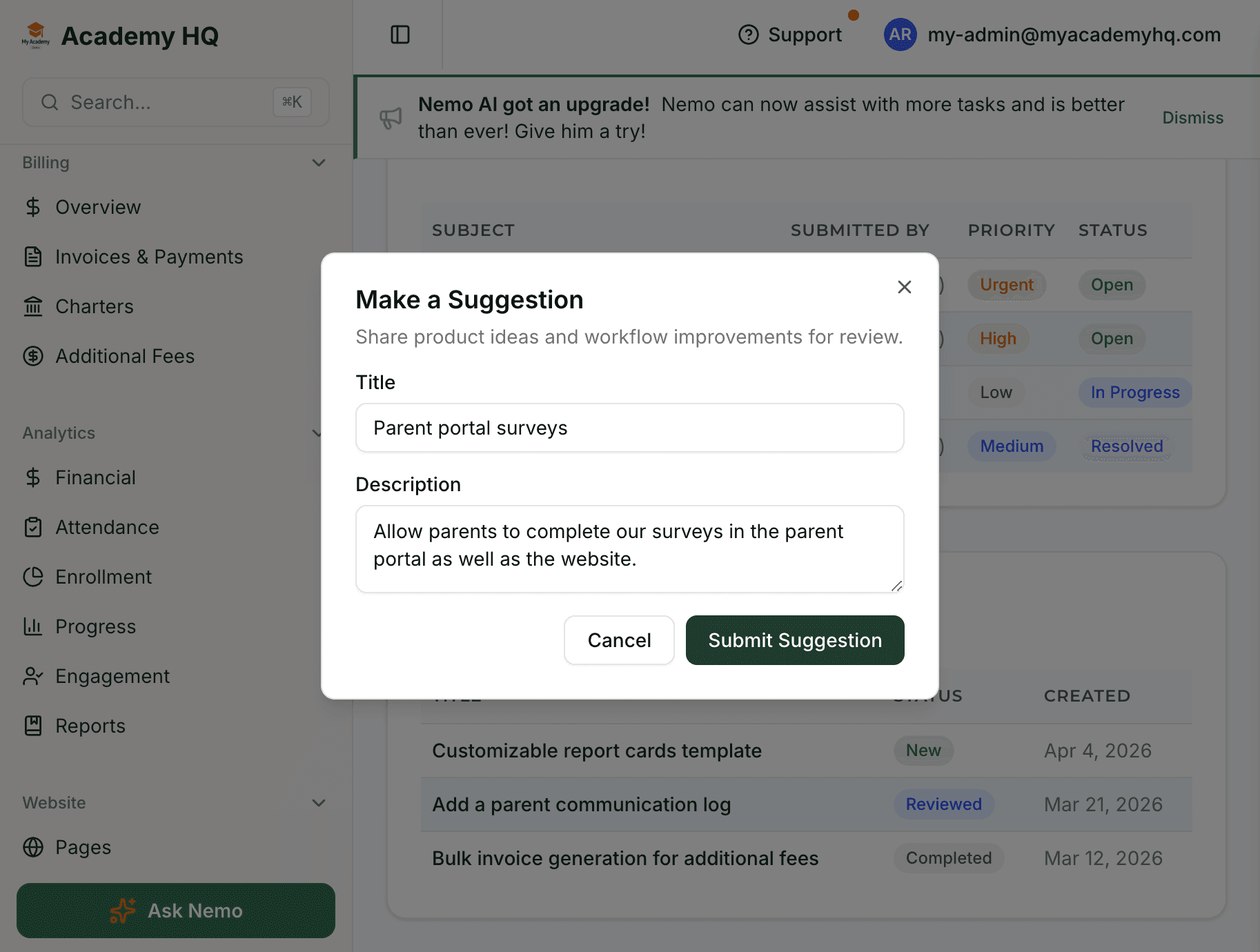
Have an idea for something we should build? Submit a suggestion from your dashboard and track its status. Our team ships new features frequently based on what schools are asking for, so your feedback has a real impact on the product roadmap.
- Submit suggestions from the same Help area used for tickets.
- Track the status of your ideas as they move through review.
- See your feedback reflected in regular product updates.
Getting started guides
Start with the setup guides your team is most likely to need during onboarding.
Frequently asked questions
Common questions about getting support, setting up your school, billing, and keeping your data safe.
How do I contact support from inside My Academy HQ?+
Support is built into your dashboard. Open the Help area to submit a ticket, choose the priority level that matches the urgency, and keep the full conversation in one thread as our team replies. This keeps questions, updates, and resolution history tied to your school account instead of getting buried in email.
Who on my team can submit tickets and track replies?+
Admins and teachers can use the in-app help workflow. School admins can review school-level ticket activity, while teachers can track the tickets they submit themselves. This gives leadership visibility without forcing every support request through a single person.
Can I suggest a feature or product improvement?+
Yes. The same Help area also lets you submit product suggestions and track their status as they move through review. That makes the support experience more useful for both problem solving and product feedback, and it reflects how schools help shape the roadmap.
Do you have setup guides for common tools like Stripe, custom email, and Google Analytics?+
Yes. The support section links to step-by-step guides for connecting Stripe, setting up your school’s email address, and adding Google Analytics. Those guides work well for common onboarding tasks, while in-app tickets are the right option when your setup needs school-specific help.
What does Nemo help with during setup?+
Nemo helps schools get up and running faster by assisting with setup tasks such as import preparation, configuration guidance, and other onboarding workflows available in the platform. It is especially useful when your team wants help moving data into the system or understanding the next step without leaving the product.
Can I import data from another system?+
Yes. You can use Data Import in Settings to upload spreadsheets, and Nemo can help map columns and support the import workflow. This makes it easier to bring over families, students, and other operational records without rebuilding everything by hand.
How do I invite parents or guardians to the Parent Portal?+
Go to the family’s record in the admin dashboard and send an invite from the guardian entry you want to onboard. The guardian receives an email to create their account and then uses the Parent Portal to view school information, invoices, updates, and other family-facing tools your plan enables.
How do I set up tuition billing and online payments?+
Start by configuring your School Year structure, Tuition Rates, and student enrollments. Then connect Stripe in Payment Settings so invoices can be paid online. This gives schools a single workflow for tuition setup, invoice delivery, and payment collection instead of managing billing in a separate system.
Can families pay tuition through the Parent Portal?+
Yes. Once Stripe is connected, families can view invoices and pay directly from the Parent Portal. That creates a cleaner experience for both the school and the family because balances, payment status, and billing history stay in the same system used for enrollment and communication.
Which plan includes the features my school needs?+
Starter covers core enrollment, tuition billing, attendance, and portal access. Essentials adds stronger communication and website tools, Standard adds student growth workflows and Nemo AI, and Professional adds advanced operations such as curriculum, scheduling, check-in, surveys, and deeper analytics. This gives schools a clear path to start small and upgrade as operations grow.
What happens after the 14-day free trial ends?+
At the end of the trial, you choose the plan that fits your school and add payment details if you want to continue. If you do not continue, the account is paused without charges and your data remains in place, so you can return without restarting your setup from scratch.
How does My Academy HQ protect school, student, and payment data?+
My Academy HQ uses secure sign-in, role-based access, encrypted data handling, and Stripe for payment processing. Admins, teachers, and parents each see the information that fits their role, and the platform’s public security and privacy materials explain how student, family, and payment data is handled in a school-appropriate way.
Ready to get started?
Start your free trial and see how support, setup, and day-to-day workflows fit together.